Key Takeaways
- Automated Ticket Triage & Dispatch: priority and the right technician, set the moment a ticket lands, no setup required.
- Microsoft 365 Tenant Health Dashboard: every tenant’s connection, sync, backup, Secure Score, and baseline health managed on one screen.
- Native ThreatDown Policy Deployment: ThreatDown installs and updates from an Asset Policy, with no scripts.
- Draft Invoices: review every invoice before a client sees it.
- End User Portal Custom Domains: your logo, your colors, and now your domain too.
A lot of the work that slows a service desk happens before anyone starts fixing anything. Scrolling and reading the ticket queue to decide who takes what. Jumping around five Microsoft screens to find the one tenant with a broken connection. Copying an installer URL into a script, again.
Syncro’s October release focuses on helping you get to the fix faster: tickets get a priority and the right tech the moment they land, broken Microsoft 365 tenants surface at the top of one screen, and ThreatDown deploys straight from policy.
In This Update
What’s New for October 2026
- What’s New for October 2026
- Automation & AI
- Automated Ticket Triage & Dispatch: Every Ticket Prioritized and Assigned on Arrival, No Setup Required
- Security
- Microsoft 365 Tenant Health Dashboard: Every Tenant’s Problems on One Screen
- Native ThreatDown Policy Deployment: Deploy and Update ThreatDown Without Scripts
- Client Experience
- Draft Invoices: Catch Billing Mistakes Before Clients Do
- End User Portal Custom Domains: Your Brand in Every Client’s Address Bar
- Quality of Life Updates
- Automation & AI
- Coming Soon: Roadmap Highlights
- Frequently Asked Questions
- Stay Connected
What’s New for October 2026
Automation & AI
Automated Ticket Triage & Dispatch: Every Ticket Prioritized and Assigned on Arrival, No Setup Required*
*Introducing Syncro Credits
Ticket Triage & Dispatch is the first Syncro capability to run on Syncro Credits, free through January 2027. Learn about Syncro Credits.
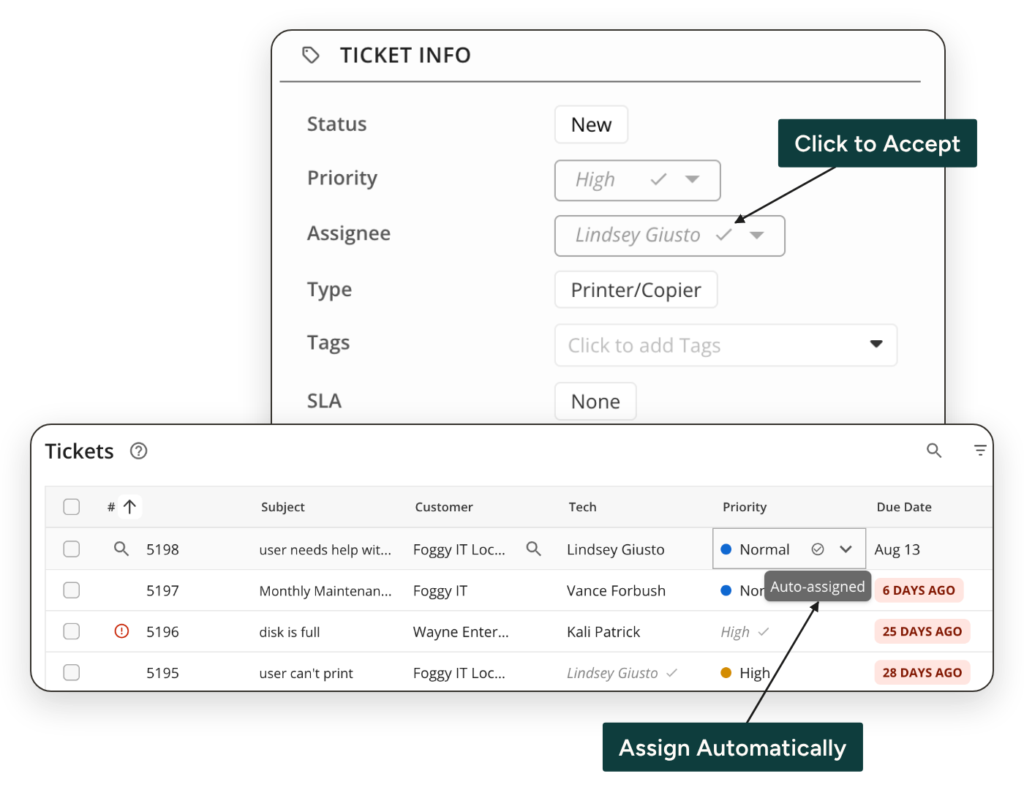
Team leads often lose the first hour of every shift playing dispatcher, and the tickets that matter most sit in the queue while techs pick off the easy ones. Hiring a dedicated ticket dispatcher usually isn’t an option for most teams: according to ScalePad’s 2026 MSP Trends Report, 26% of MSPs don’t have enough staff to service the clients they already have.
Automated Ticket Triage & Dispatch scores priority and matches a technician the moment a ticket lands.
- Priority from context. Each ticket’s priority weighs ITIL type, classification, urgency, impact, and VIP status, so “this isn’t urgent” stays low.
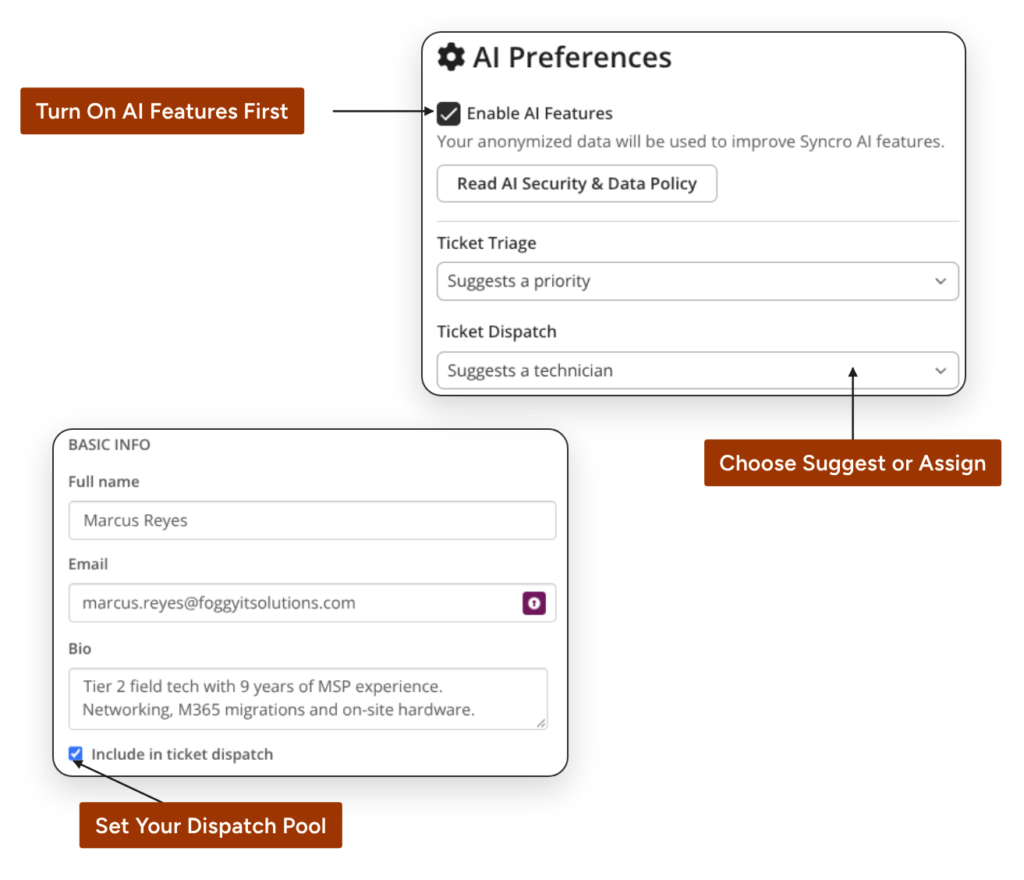
- The right tech, not the next tech. Tech assignment scores against problem-type experience, recent related work, current workload, and history with that customer, and excludes anyone you’ve left out of the dispatch pool.
- Calendar-aware. Anyone out of office or more than 75% booked in Outlook or Google Calendar drops out of the candidate pool.
- Automate at your pace. Suggest mode is on by default, so every decision needs human approval. Switch to Assign mode for Triage or Dispatch independently once you trust the results.
In Practice:
- The morning queue. Instead of opening every new ticket to check who has bandwidth, a team lead opens the ticket list, sees a suggested priority and technician on each one, and clears the morning queue with single-click approvals.
- The senior tech is out. A high-priority ticket arrives while the senior tech is on-site. Dispatch reads the calendar, leaves them out, and routes the ticket to the next available tech with the right skills and history with that client.
- No more cherry-picking. An MSP running Assign mode skips the shared unassigned queue entirely. Tickets route the instant they’re created, with workload balanced across the team.
“When my dispatcher sees it’s not recommending him as the assigned tech, it takes pressure off of him, so he can quickly complete Tier 1 triage and get it to the right person.”
Jordon Brault | PC Wizard
With automated Ticket Triage and Dispatch, Syncro Partners see faster tech assignments and better Tier 1 triage overall.
| 42% Decrease | 8 in 10 Tickets Assigned | 65% of Priorities Accepted |
| in average time to ticket assignment. | to a technician recommended by Ticket Dispatch. | when suggested by Ticket Triage. |
Security
Microsoft 365 Tenant Health Dashboard: Every Tenant’s Health Status on One Screen
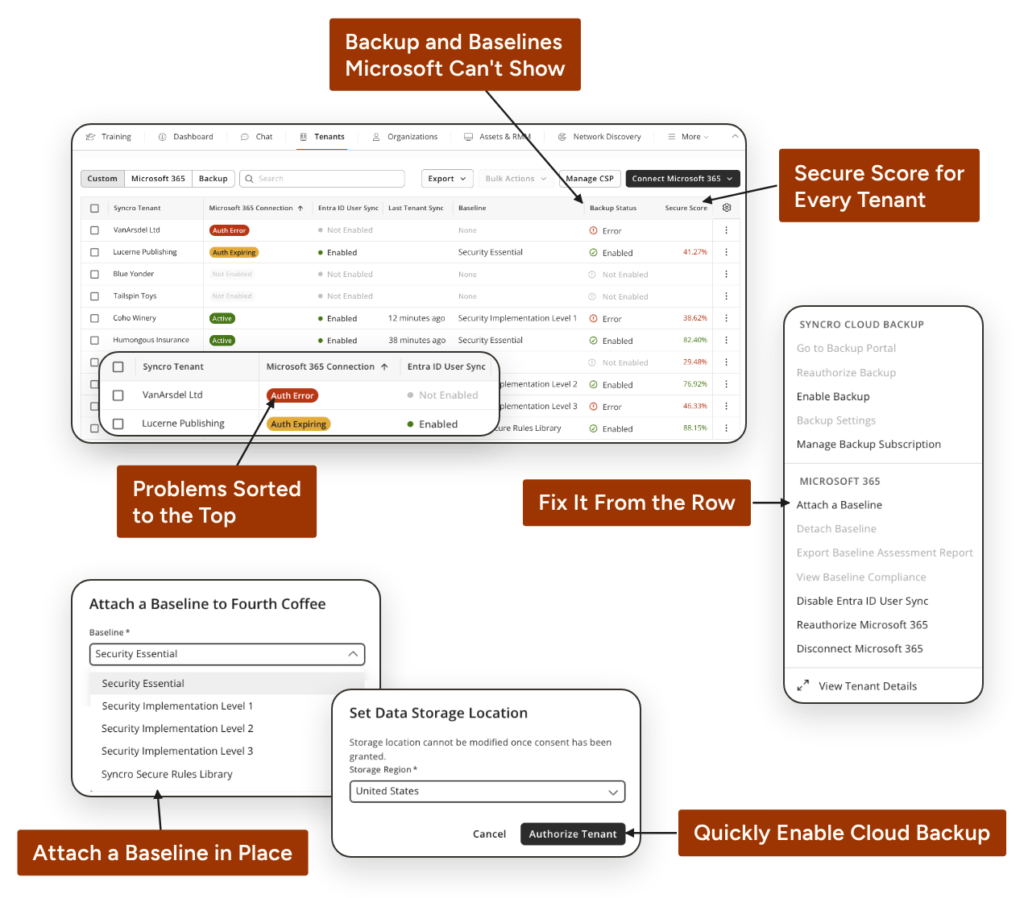
Answering “which of my tenants has a problem right now” used to mean opening a screen for connection status, another for Entra ID sync, another for backup, and two more for Secure Score and baseline compliance, then repeating it for every tenant. The Microsoft 365 Tenant Health Dashboard puts all five on one row per tenant, in a new top-level Tenants tab, with critical issues already at the top.
- Health-first view. Auth errors and unmapped tenants sort above everything else, and hovering a status column shows the detail behind it.
- Fix in place, one tenant or fifty. Re-authorize connections, attach baselines, and change Entra ID sync in bulk without leaving the tab.
- What Microsoft can’t show. Syncro Cloud Backup health and Syncro baseline compliance sit next to native Secure Scores.
- No Global Admin required. Syncro Security Groups control who sees and acts on tenant health.
In Practice:
- The morning health sweep. A tech opens the Tenants tab, sees auth errors already at the top, and runs bulk re-authorizations for every tenant with a failed connection before opening a single ticket.
- Onboarding a new client. An onboarding specialist maps newly imported CSP tenants, sets Entra ID sync filters, and attaches baseline templates from one workspace instead of hopping between the admin center and separate Syncro screens.
Native ThreatDown Policy Deployment: Deploy and Update ThreatDown Without Scripts
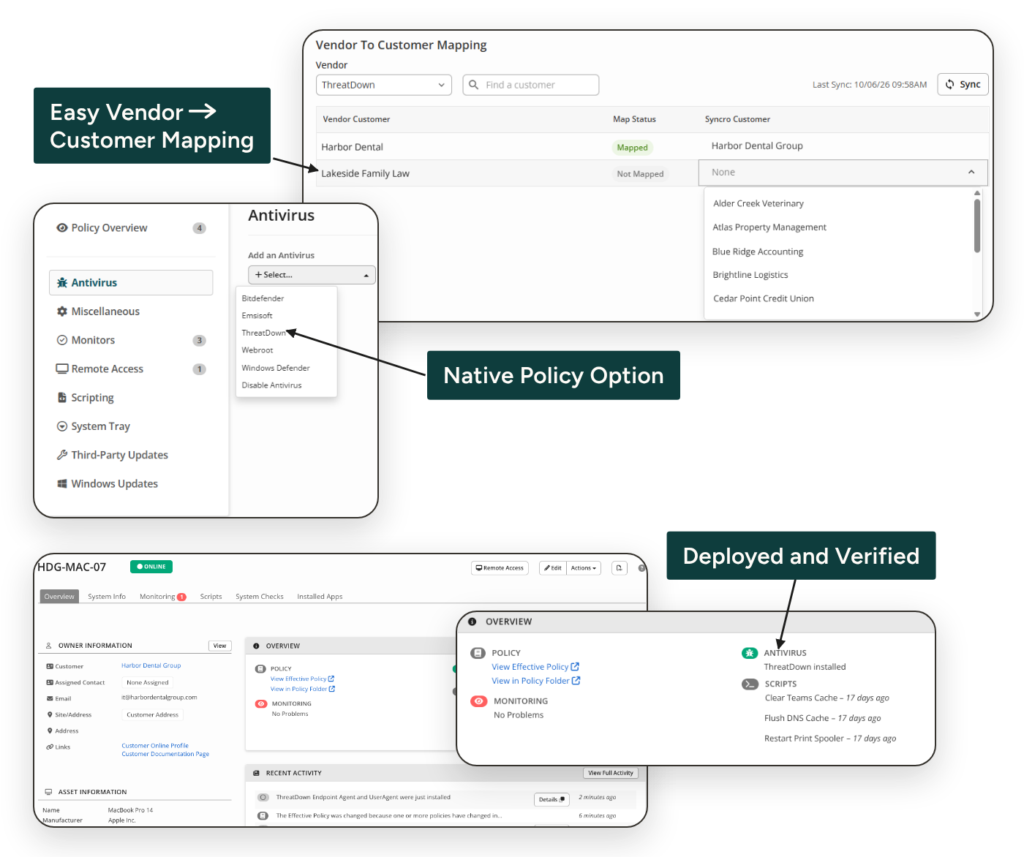
Change a ThreatDown policy in the Nebula console today and your RMM has no way to know, so the next endpoint you add gets a stale package. That kind of manual upkeep adds up: according to Automox’s 2026 State of Endpoint Management Report, 43% of teams spend 10 or more hours a week on manual endpoint tasks.
Now you select ThreatDown from the Managed Antivirus dropdown in any Asset Policy, and Syncro handles the rest.
- Deploys from the policy. Syncro pulls the correct installer and the agent installs it in the background on every covered endpoint.
- Upgrades in one move. Add Ransomware Rollback or MDR to a policy and every covered endpoint updates.
- Syncs back from Nebula. Policy changes made in the ThreatDown console update Syncro’s stored configuration on their own.
- Shows what landed. Deployment and sync health appear on the Asset dashboard, and a failed installer fetch flags an error on Asset Details.
In Practice:
- Standing up a new client. A tech adds the new client’s endpoints to an Asset Policy with ThreatDown selected, and every covered endpoint gets the current installer and settings without a script.
- A fleet-wide protection upgrade. A security lead adds Ransomware Rollback in the ThreatDown console, and Syncro updates every endpoint on that policy without anyone touching them one by one.
- Keeping Nebula and Syncro aligned. An admin changes a policy directly in Nebula. Syncro picks up the change, so the next endpoint added to that policy gets the updated configuration.
Client Experience
Draft Invoices: Catch Billing Mistakes Before Clients Do
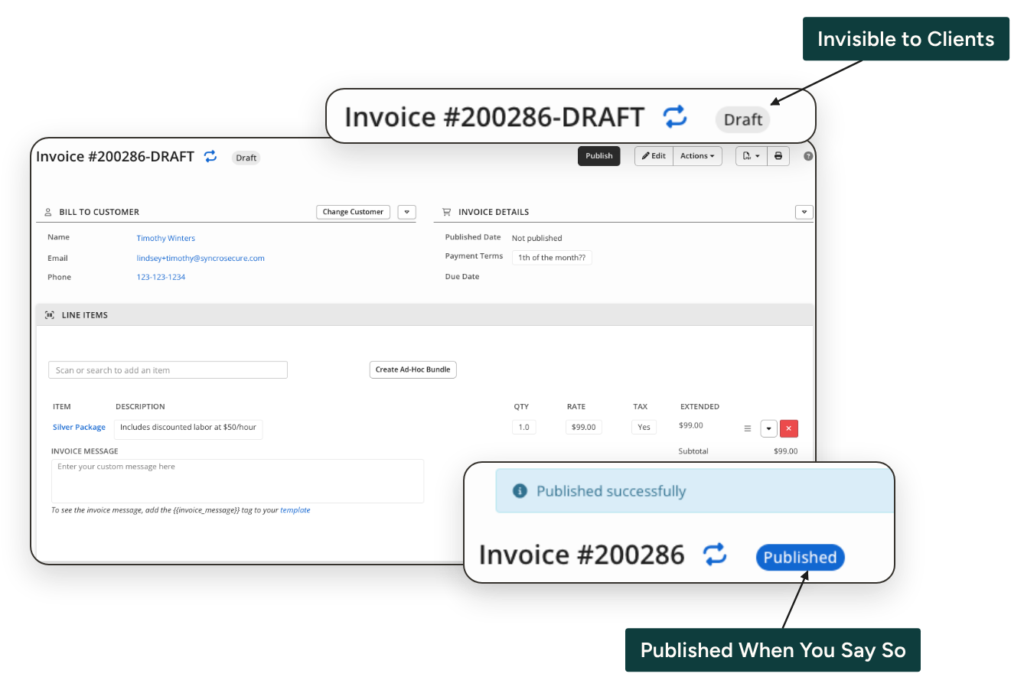
Billing mistakes are easier to prevent than to undo. Draft Invoices adds a review step before an invoice reaches anyone outside your team: nothing is client-visible, no due date starts, and nothing gets emailed or charged until you publish.
- Work a draft invoice like a published one. Line items, inventory reservation, serial assignment, and PDF downloads all function exactly as they do post-publish.
- Batch review for recurring billing. Set recurring templates to generate drafts, filter to Draft, fix what’s wrong, and bulk-publish the rest.
- Let recurring billing run at publish. For drafts from a recurring schedule, the auto-charge, auto-apply credit, and customer emails configured on that schedule run in that same action.
- Xero stays in step. A Syncro draft syncs as a native Xero draft and flips to approved when you publish. QuickBooks syncs once an invoice is published.
- API-ready. Draft status and the publish action are built into the Invoices API.
In Practice:
- Clearing the morning batch. Recurring invoices land as drafts overnight. A billing admin filters to Draft, catches a quantity error and an invoice for a client who paused service, and bulk-publishes the clean ones. No voids, no awkward calls.
- Billing a mixed portfolio. Flat-fee contracts publish and auto-charge on the first of the month, while labor-based and per-endpoint contracts land as drafts. A billing admin adjusts line items and endpoint counts on the 47 variable invoices, then bulk-publishes them. Every auto-charge and customer email goes out in that one action, not 47 payment dialogs.
- Approving before it ships. An MSP owner turns on drafts account-wide. The lead tech invoices the same way as before, and the owner reviews and publishes the week’s drafts on Friday afternoon.
- A custom approval flow. A developer wires drafts into a Slack approval tool. A manager reacts to approve, and the tool publishes the invoice through the Syncro API.
End User Portal Custom Domains: Your Brand in Your Client’s Address Bar
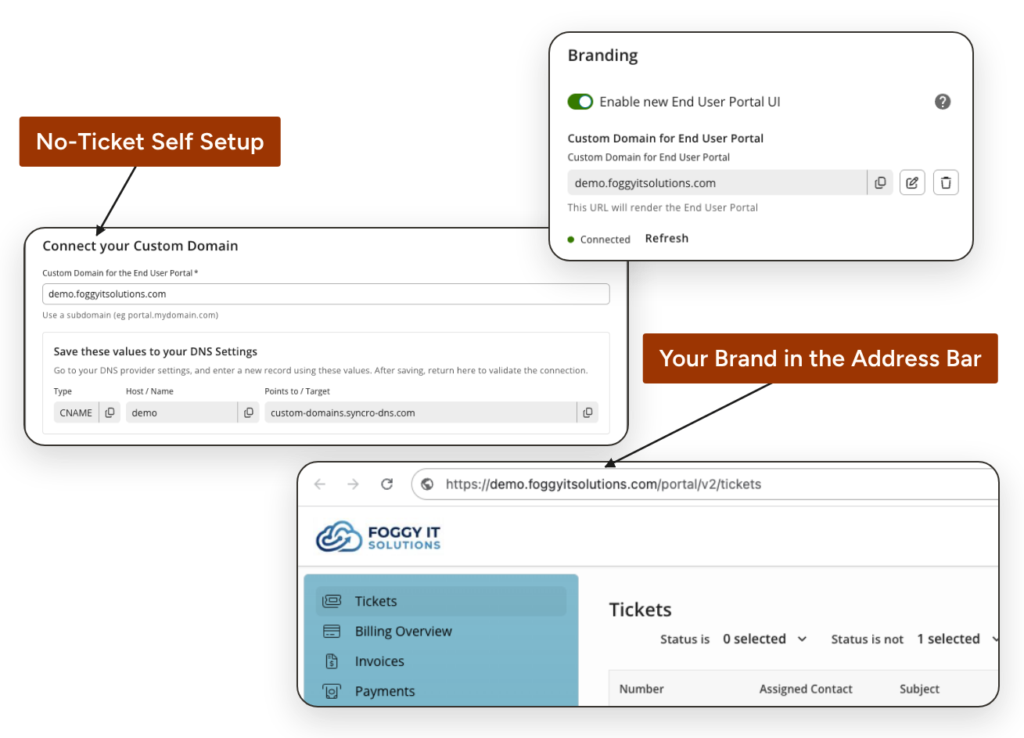
Every client who bookmarks your End User Portal saves a Syncro URL, undercutting the branded experience you built. Now the portal runs on your domain. Enter the domain you want to use, add the CNAME record to your DNS, and let Syncro handle the rest.
- A portal that’s clearly yours. Clients log in at portal.yourmsp.com and see your brand from the address bar down.
- No ticket, no waiting. Set it up yourself in Admin Settings. Syncro verifies the domain and issues the certificate on its own.
- SSL that renews itself. The certificate stays current as long as the CNAME is in place.
- Answers when setup stalls. Live status and targeted guidance, including a Cloudflare-specific callout, help you fix issues without contacting support.
- No disruption for clients. Links you’ve already sent keep working after the switch.
In Practice:
- Branding from day one. An MSP owner onboarding a client wants the portal link in the welcome email to carry its brand. They enter the domain in Admin Settings, a tech adds the CNAME, and the portal is live with a branded domain before the welcome email sends. No Syncro URL in the client’s first impression.
- Catching the Cloudflare trap. A tech adds the CNAME in Cloudflare and leaves the proxy on. The setup guidance calls out proxied mode, the tech switches it to DNS only, and the domain moves to Active. No support ticket asking why it’s stuck.
- Switching without broken links. A Partner with years of bookmarks and onboarding emails pointing at the old portal URL activates its custom domain, and every existing link keeps working.
- Branding a healthcare client portal. An MSP serving dental practices runs on a HIPAA/Shield account. It sets up its custom domain through the same self-service flow as any other Partner, and office managers log in on the MSP’s domain. No separate process, no reduced experience.
Quality of Life Updates
Assets
No-Script Security Insights
- You can now confirm BitLocker encryption, TPM version, and recovery keys on every fixed volume straight from the Asset Detail page, with each key reveal logged in the Activity Feed.
- There are 10 new and corrected data points in all, including local admin accounts, login history, last user activity, missing Windows updates, and Windows license status.
Patching Dashboard: Persistent Configuration
- Now remembers your table grouping, filters, columns, and Patch Data Settings per user, so it opens exactly how you left it.
Mobile App
Biometric Login
- You can now sign in to Syncro Mobile with Face ID or Android biometrics, and your session stays active when your phone moves from office Wi-Fi to cellular.
For more details and a full list of quality-of-life improvements.
Coming Soon: Roadmap Highlights
Better ticketing continues with the full release of Automated Ticket Triage & Dispatch and Guided Ticket Resolution, Syncro’s Microsoft 365 and endpoint security posture strengthens, and quality of life releases close gaps around client experience and search.
- Guided Ticket Resolution (Now in Open Beta): Most help desk time goes to tickets that have the same answer every time. Disk cleanups, password resets, MFA resets, and session revokes get diagnosed and executed from the ticket in seconds, with a full audit trail.
- End User Portal | Ticket Intake Chatbot (Join Early Access): Chat-based intake asks follow-up questions, so the ticket arrives with the affected device, the issue, and what’s already been tried.
- QBO Error Visibility & Auto-Retry: QuickBooks sync errors show up on the Invoice and Payment index, and common conflicts retry on their own.
- Full-Context Ticket Search (Join Early Access): Find a ticket by almost anything you remember. Search covers comments, labor logs, worksheets, custom fields, and asset data, not just the subject line.
Frequently Asked Questions
Yes. Automated Ticket Triage & Dispatch sets each ticket’s priority and recommends a technician the moment it’s created, based on workload, skills, calendar availability, and customer history. It starts in Suggest mode, so a human approves each call until you switch it to Assign.
The Microsoft 365 Tenant Health Dashboard shows connection status, Entra ID sync, Syncro Cloud Backup health, Secure Score, and baseline compliance for every tenant on one screen. Problem tenants sort to the top, and you can fix issues in bulk from the same tab.
Yes. Native ThreatDown Policy Deployment lets you select ThreatDown in a Syncro Asset Policy, and Syncro deploys the current installer to every covered endpoint. Changes made in the ThreatDown Nebula console sync back to Syncro on their own.
Yes. Draft Invoices keeps an invoice internal until you publish it, with no client visibility, no due date, and no QuickBooks sync until then. Recurring templates can generate drafts so you can review and bulk-publish a full billing cycle.
Yes. End User Portal Custom Domains lets you add one CNAME record, and Syncro verifies the domain, issues the SSL certificate, and renews it automatically. Setup is self-service, with no support ticket required.
Stay Connected
Join us monthly for live demo and Q&A around Syncro’s latest news and releases.

Share
Related Resources