Key Takeaways
- MCP Server | Estimates, Time Billing, & Ticket Comments: quote, correct time, and invoice from the AI assistant you already use.
- MCP Server | Business Owner Plugin – Quarterly Business Review Skill: a QBR that leads with fleet age, warranty runway, and end of support, plus an internal prep sheet for what stays with you.
- Mobile App | Intake & Outtake Forms: client signatures on scope and sign-off, captured onsite and saved to the ticket.
- Syncro Payments | Reconciliation & Balance Report: every payout tied to the charges, fees, refunds, and disputes behind it.
- Full-Context Ticket Search: find any ticket by what you remember, from a comment or worksheet answer to a machine’s serial number.
- Ticket History for Non-Admins: the full change record on a ticket for the people who handle escalations, without admin rights.
Revenue gets lost in small handoffs. A quote waits until someone opens the estimate screen. Two hours of onsite work sit under the wrong labor type. A client disputes the scope because nobody signed anything at the door. A deposit lands lower than expected, and someone spends Friday afternoon in bank statements working out why.
Syncro’s November release closes those handoffs. Your AI assistant now carries a job from quote to invoice, your techs get a signature at the start and end of every onsite visit, and Syncro Payments explains every deposit line by line.
In This Update
- What’s New for November 2026
- Automation & AI
- MCP Server | Estimates, Time Billing, & Ticket Comments: Quote the Job and Bill the Time Without Leaving Your AI Assistant
- MCP Server | Business Owner Claude Plugin – Quarterly Business Review Skill: Walk Into Every QBR with a Decision List Your Client Can Approve
- Service Delivery
- Mobile App | Intake & Outtake Forms: Scope Signed Before Work Starts, Sign-Off Before You Leave
- Full-Context Ticket Search: Find Any Ticket by Whatever You Remember
- Ticket History for Non-Admins: Handle Escalations Without Handing Out Admin Rights
- Billing & Payments
- Syncro Payments | Reconciliation & Balance Report: Every Payout Explained, Line by Line
- Quality of Life Updates
- Automation & AI
- Coming Soon: Roadmap Highlights
- Frequently Asked Questions
- Stay Connected
What’s New for November 2026
Automation & AI
MCP Server | Estimates, Time Billing, & Ticket Comments: Quote the Job and Bill the Time Without Leaving Your AI Assistant
Plan Availability: All Plans
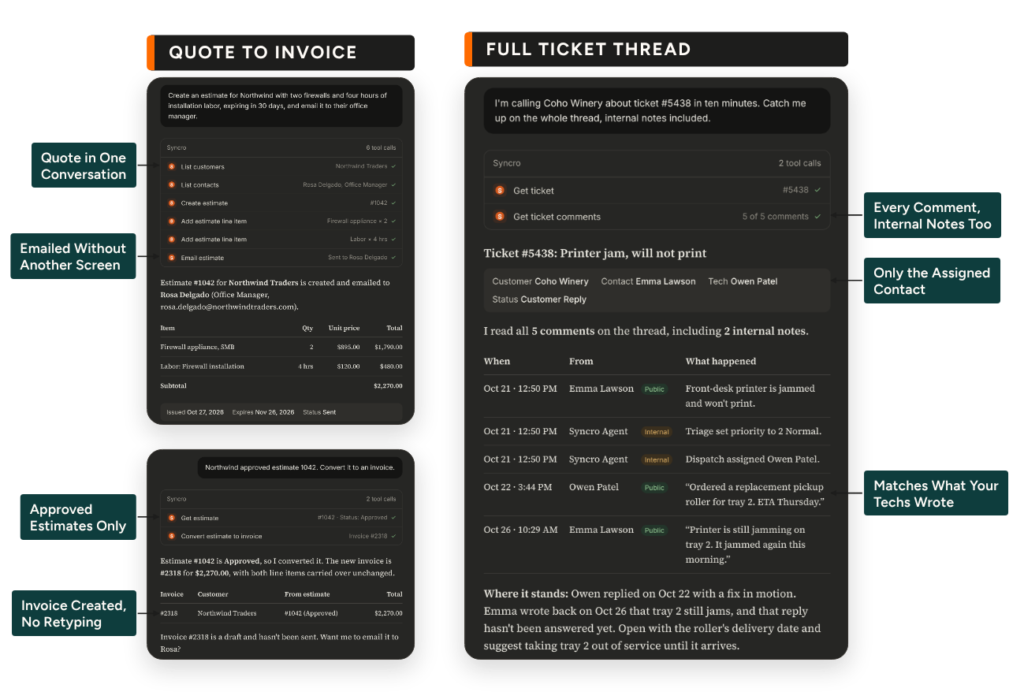
Your AI assistant can already look up a ticket, but quoting a job, fixing a mislabeled time entry, and pushing hours onto an invoice still send your team back into the Syncro UI. The Syncro MCP Server now carries that work from the first quote to the invoice, inside the same conversation.
- Quote in one conversation. The assistant creates an estimate, adds and updates line items, sets status and expiry, and emails it to the client.
- Approved estimate to invoice. Conversion checks that the estimate is Approved first, then returns the new invoice ID, so a draft or declined quote never becomes an invoice by accident.
- Correct time without rebuilding it. Change the labor type, start time, end time, duration, or notes on an existing timer entry, and the original timestamp stays intact.
- Logged time straight to billing. The assistant charges a timer entry to the ticket’s open invoice and confirms it, or tells you plainly when no open invoice exists.
- The whole ticket thread. The assistant reads the complete comment thread, so what it tells you about a ticket matches what your techs wrote.
In Practice:
- The service manager quoting after a site visit. A client asks for two firewalls and four hours of install labor. The service manager asks her assistant to build the estimate, set a 30-day expiry, and email it to the client’s office manager. When the client approves, one more request converts it to an invoice, and the quote went out the same afternoon instead of the next morning.
- The billing admin cleaning up time. A tech logged two hours as remote support for an onsite job. The billing admin asks the assistant to change the labor type, keeps the original timestamp, and charges the entry to the ticket’s open invoice in the same conversation.
- The MSP owner’s morning question. The owner asks which estimates expire this week and how each tech’s clocked hours compare with the time logged on tickets. The AI assistant answers both, so the owner follows up on quotes at risk of lapsing and sees where logged time trails attendance.
Note: Reads and writes are separate tools, so your AI assistant can ask before anything changes. Nothing in this release deletes an estimate.
MCP Server | Business Owner Claude Plugin – Quarterly Business Review Skill: Walk Into Every QBR with a Decision List Your Client Can Approve
Plan Availability: All Plans
Quarterly Business Reviews built from last quarter’s ticket count are generally easy to pull together and tell your client what happened, but they aren’t necessarily proof you delivered or statements of issues their environment is experiencing. Data that makes next year’s budget conversation easy, on the other hand, like fleet age, warranties about to lapse, and servers heading for end of support, are often challenging to pull and even more tedious to analyze.
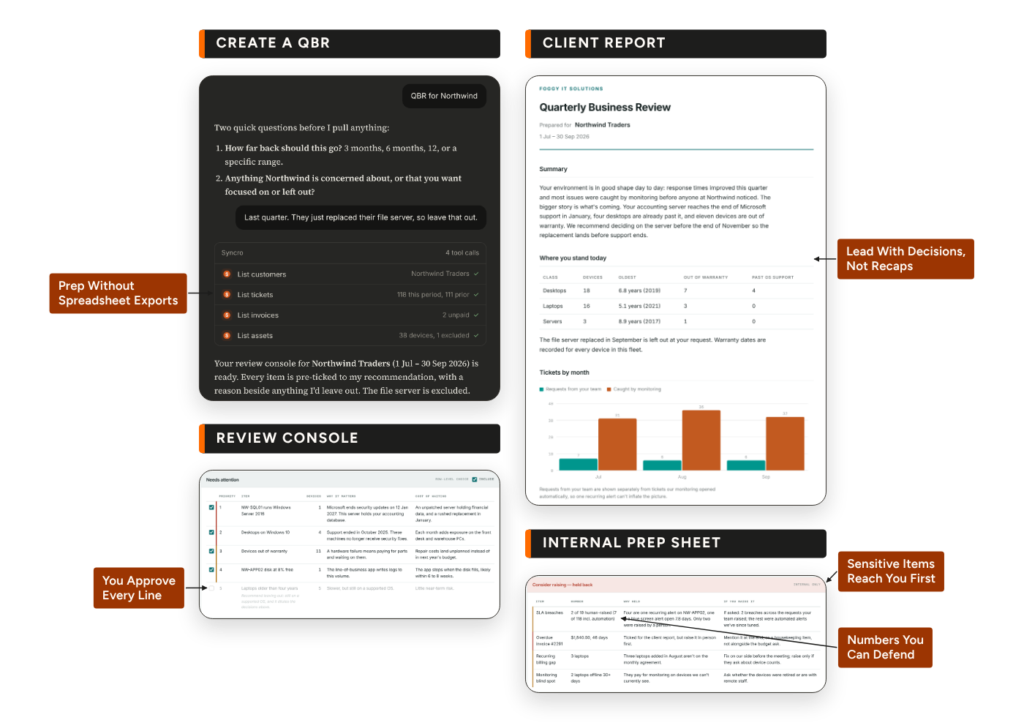
Syncro’s QBR Skill for Claude reads tickets, invoices, and assets through the Syncro MCP connector and builds a review that prioritizes where the client stands and what’s coming first, and what you handled second.
- Lead with where the client stands. Fleet age by device class, warranty runway, operating systems past end of support, antivirus, and disk headroom open the report, and where warranty dates aren’t recorded, the report says so instead of guessing.
- A client report built from what you approve. A review console opens with every item pre-ticked to its recommendation and a one-line reason beside anything left out, and the client report is generated only from what you tick.
- Sensitive items reach you first. SLA breaches, aged receivables, gaps in recurring billing, and monitoring blind spots land in an internal prep sheet with a suggested framing, so you decide what gets raised and how.
- Numbers that hold up when the client’s IT person checks. Tickets people raised are separated from tickets automation generated, response and resolution times are reported as medians, and a method section lists the rules applied.
- Read-only in Syncro. The skill never posts comments, edits tickets, or creates or emails invoices, so you can run a review the night before the meeting.
In Practice:
- The account manager prepping Thursday’s review. Instead of exporting tickets into a spreadsheet, she asks Claude for a QBR for Northwind, picks six months, and tells it to skip the file server the client just replaced. She ticks what Northwind should see in the console and generates the client report from her local copy.
- The MSP owner deciding what the client sees. The prep sheet shows that four of seven SLA breaches were the same recurring alert on one server and only two were raised by a person. It offers two ways to say it, and he picks the framing he’ll use if the client asks while keeping all of it out of the client report.
- The vCIO building a refresh budget. The Needs Attention table lists servers reaching end of support and devices out of warranty, each with what waiting costs. Every recommendation traces to a line above it with a decide-by date, so the client sees a short list of decisions instead of a device inventory.
Service Delivery
Mobile App | Intake & Outtake Forms: Scope Signed Before Work Starts, Sign-Off Before You Leave
Plan Availability: All Plans
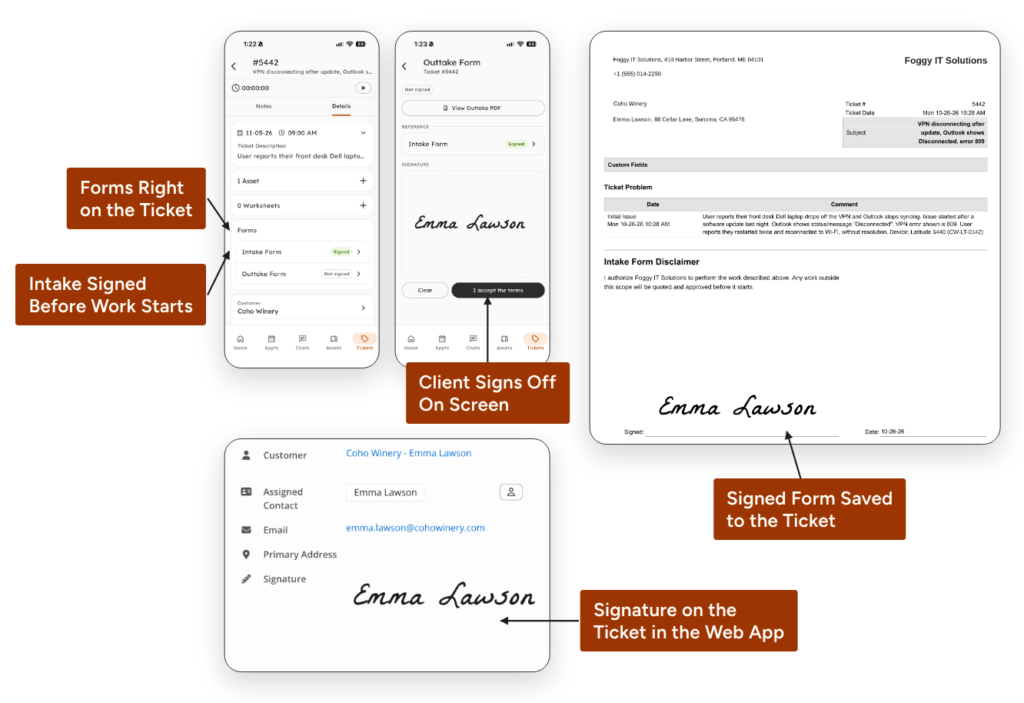
The easiest time to settle a scope question is before the work starts, with the client standing next to you. Your techs can now present the Intake Form from the ticket in the Syncro Mobile App, hand over the phone, and capture the client’s signature on screen. When the job is done, the Outtake Form gets a second signature confirming the work was done the way the client wanted, and both land on the ticket for your office to see.
- Intake signed onsite. The client reviews the scope of work and signs on the tech’s phone before anyone opens a laptop.
- Outtake signed before you leave. The client confirms the completed work on screen, so every onsite job ends with a signed record.
- One record on the ticket. Signed forms save to the same ticket in the web app, using the forms and terms your office already set up.
- No paper and no extra app. There’s nothing to scan, export, or reconcile from a separate e-signature tool.
In Practice:
- The field tech on a network install. Before unboxing a new switch and access points, the tech opens the ticket, shows the office manager the Intake Form listing the agreed work, and gets a signature on the phone. When the install is done, the office manager signs the Outtake Form, and the tech heads to the next job with both signatures already on the ticket.
- The owner backing up an invoice. A client questions a line on last month’s invoice. The owner opens the ticket in the web app and finds the signed Intake Form with the agreed scope and the signed Outtake Form confirming the work, and the conversation moves to a record both sides signed.
- The service manager moving the team to the new app. Techs stayed on the legacy mobile app because it was the only way to collect signatures onsite. With Intake and Outtake Forms in the current Syncro Mobile App, the whole team moves over without changing how they get client approval.
Full-Context Ticket Search: Find Any Ticket by Whatever You Remember
Plan Availability: All Plans
Roll Out: Releasing to every Syncro account through November 2026.
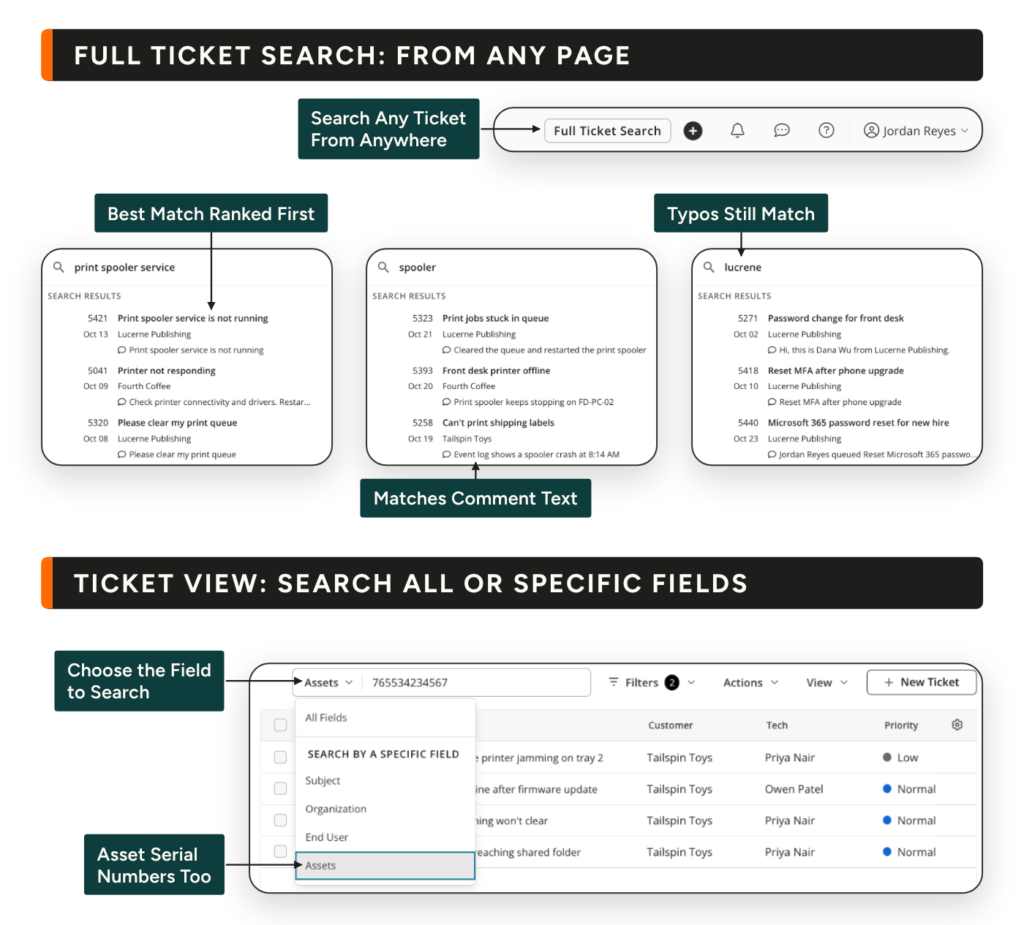
Ticket Search now reads the whole ticket, from comments and Labor Log notes to worksheet answers, custom fields, tags, and linked asset serial numbers, so years of ticket history and already documented steps and fixes become a record your teams can search and reuse.
- Search every part of the ticket. Find a ticket from a Labor Log note, a custom field value, a worksheet answer, a tag, or a client, end user, or technician name, not just the subject line.
- Forgiving of typos and partial words. Longer words tolerate small typos and partial typing, so “chambe” still finds “Chambers,” while short words and numbers stay exact to keep results clean.
- The right ticket first. Exact ticket numbers and word-for-word phrases rank first, and a subject match outranks a passing mention deep in a long comment thread.
- One machine’s full history. Search an asset name or serial number, or choose Assets in the Tickets page field selector, and get every ticket tied to that device.
- One engine, two ways in. The Full Ticket Search button replaces Smart Ticket Search, and finds a ticket from any page, while the Tickets page search filters the list you’re viewing across all fields or just one.
In Practice:
- The help desk tech chasing a known fix. A client hits the same Outlook error they reported three months ago, and the tech remembers the error code, not the ticket subject. She opens Full Ticket Search, types “0x800CCC0E,” and the old ticket comes back because the code sits in a comment, so she applies the documented fix instead of troubleshooting from scratch.
- The field tech at the client’s desk. A laptop keeps dropping Wi-Fi, and searching the client’s name returns every ticket the Organization ever opened. The tech enters the laptop’s serial number instead and gets the tickets tied to that machine, including ones whose subjects never mention it.
- The service manager before a client review. Ahead of a client call, the service manager wants every ticket the team tagged “urgent_fix.” She searches the tag and gets the current list back immediately, instead of relying on memory for which tickets qualified.
Results respect user permissions, so techs only see tickets they’re already authorized to view.
Note: Smart Ticket Search has been retired and is replaced by Full Ticket Search.
Ticket History for Non-Admins: Handle Escalations Without Handing Out Admin Rights
Plan Availability: All Plans
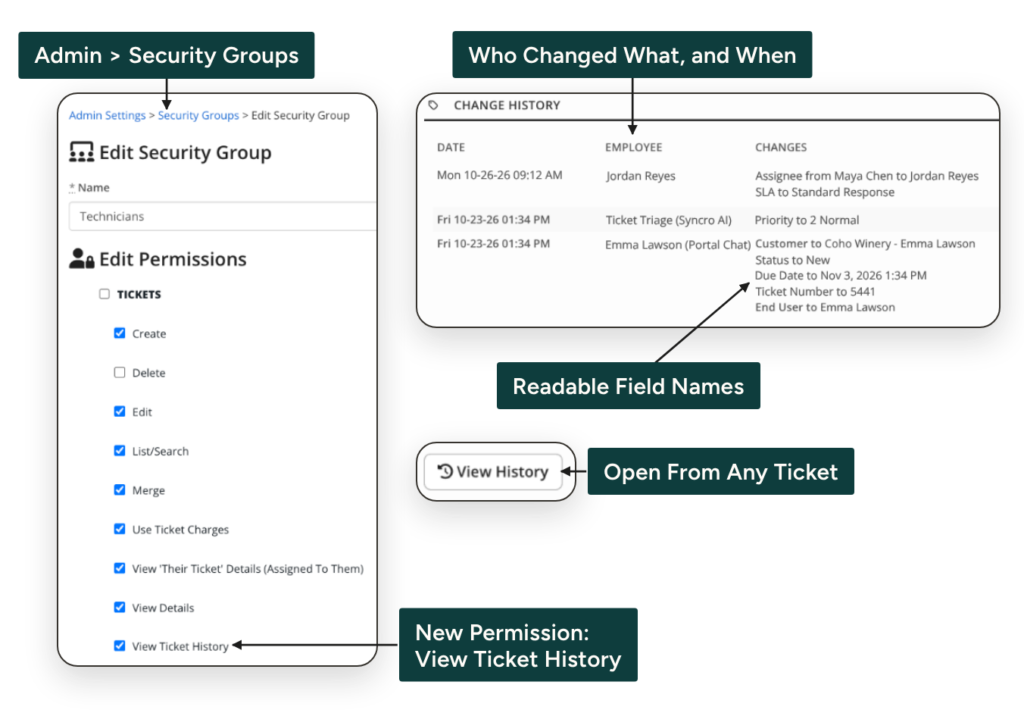
When an issue escalates, whoever takes the call needs to know who had the ticket and when the due date moved. Until now, only Global Admins could see that, so every escalation landed on them or on someone they had to make an admin.
Turn on the new View Ticket History permission for a Security Group, and your service managers, help desk leads, and IT department managers get the full change record on the ticket, with no access to billing or account settings.
- Its own permission. View Ticket History sits under Tickets in Security Groups, so you grant ticket history without granting admin rights.
- The full change record. Status, assigned technician, priority, end user, due date, SLA, and custom field changes, all from the View History button on the Ticket Details page.
- Names, not database IDs. Technician, end user, customer, ticket type, and SLA changes show the name a manager can repeat to a client.
- Off until you turn it on. The permission starts unchecked in every Security Group, so nothing changes until a Global Admin decides who gets it.
In Practice:
- The service manager on an escalation call. A client calls, frustrated that a ticket opened days ago is still open. The service manager clicks View History and sees it was reassigned, its priority was lowered, and its due date was pushed back, so she explains what happened and fixes the assignment while the client is still on the line.
- The owner delegating escalations. An owner wants his tech manager handling escalations instead of routing them to him. He checks View Ticket History on the Service Managers Security Group, and the tech manager sees any ticket’s history with no access to billing, sales, or account settings.
- The help desk lead in an SLA dispute. A client says their ticket missed its SLA. The help desk lead opens the history, sees the SLA change by name along with when it happened, and has the facts for the conversation in a few clicks.
Billing & Payments
Syncro Payments | Reconciliation & Balance Report: Every Payout Explained, Line by Line
Plan Availability: All Plans
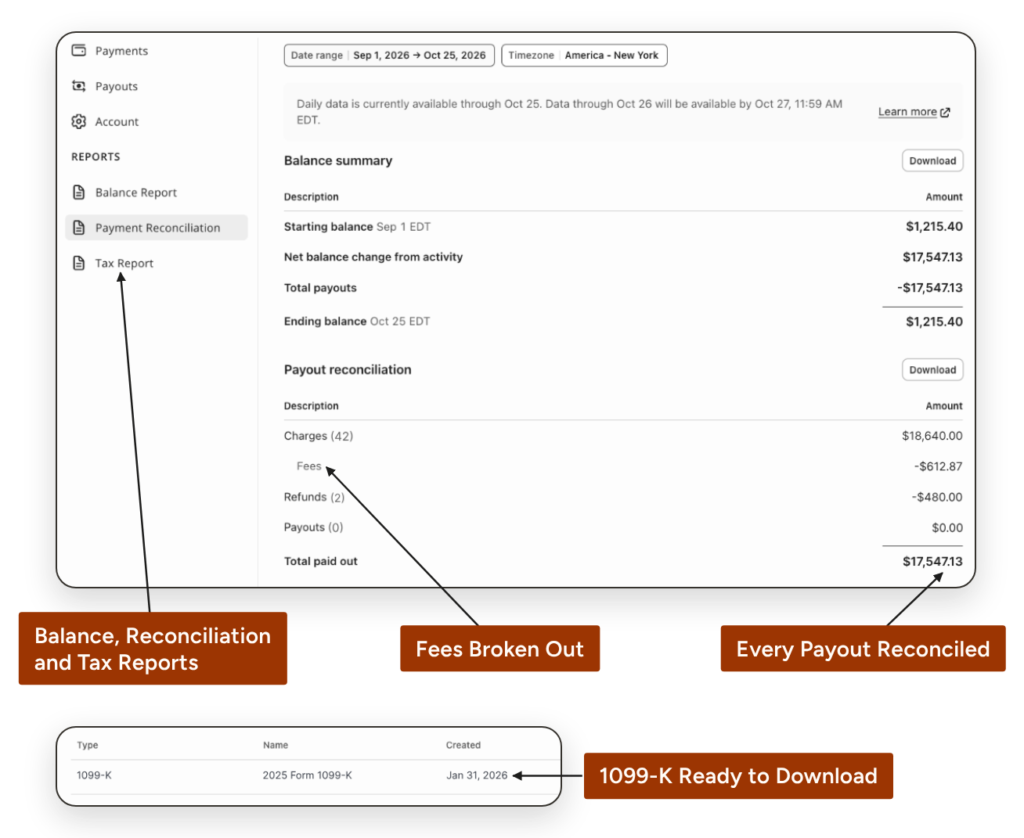
Your bank shows one Syncro Payments deposit. Your books show the client payments, refunds, and processing fees that went into it. A new Reports tab in the Syncro Payments dashboard ties each automatic payout to the transactions behind it and breaks out fees, refunds, and disputes for any period, ready to export for your books.
- A receipt for every payout. The Payout Reconciliation Report shows each payout your bank received and the exact transactions it settled, grouped by category.
- Your balance, fully explained. The Balance Report breaks every movement into charges, refunds, disputes, adjustments, and fees, with starting and ending balance for the period.
- Fees you read, not calculate. Gross, fee, and net amounts sit side by side for every category, so last month’s processing cost is a line on the report.
- Filters that match your close. Filter by date range and currency, and by time zone on the Balance Report, so a month starts and ends when yours does.
- Exports your bookkeeper can use. Every subreport downloads as a summarized CSV for the month-end entry or an itemized CSV for line-by-line review.
In Practice:
- The MSP owner with a short deposit. Friday’s deposit came in lower than expected. The owner opens the Payout Reconciliation Report for the week and sees the client charges it settled, a midweek refund, and the processing fees, all netting to the amount in the bank.
- The office manager closing the month. The office manager runs the Payout Reconciliation Report for the month and exports the summarized CSV for each payout. Ending Balance Reconciliation shows payments collected on the last day that settle next month, so they’re booked in the right period instead of chased as missing.
- The bookkeeper booking processing fees. An outside bookkeeper asks for last quarter’s processing fees. The office manager runs the Balance Report for the quarter in the company’s time zone and sends the itemized CSV with gross, fee, and net amounts for every transaction.
Because the reports read straight from the payment processor’s records, the totals in Syncro match the money in the bank.
Quality of Life Updates
For more details and a full list of quality-of-life improvements.
Coming Soon: Roadmap Highlights
The next releases take more of the back-and-forth out of the service desk, from the first message a user sends in the portal to the fix a tech applies.
- End User Portal | Ticket Intake Chatbot (Join Early Access): Users describe the problem in plain conversation, and the ticket lands with the device linked and the steps already tried written down.
- Guided Ticket Resolution (Now in Open Beta): Disk cleanups, password resets, MFA changes, and session revokes handled from the ticket in seconds, with a full audit trail.
- QuickBooks Online Sync | Inline Errors & Auto-Retry: QuickBooks sync errors show up on the Invoice and Payment index, and common conflicts retry on their own.
Frequently Asked Questions
Yes. The Syncro MCP Server now lets any connected AI assistant create, update, and email estimates, then convert an Approved estimate to an invoice. It can also correct timer entries and charge logged time to a ticket’s open invoice, all from one conversation.
Yes. The QBR Skill, part of the Business Owner Plugin for Claude, reads tickets, invoices, and assets in Syncro and builds a client report that leads with fleet age, warranty runway, and end-of-support dates. SLA misses and overdue invoices go to a separate internal prep sheet, and the client report includes only what you approve.
Yes. Intake and Outtake Forms are now supported on the Mobile App, letting techs present them before work starts and when it’s done, with the client signing on the phone. Both signed forms save to the ticket and show up in the web app.
Open the Reports tab in the Syncro Payments dashboard. The Payout Reconciliation Report ties each payout to the transactions it settled, and the Balance Report breaks out charges, refunds, disputes, and fees for any period, with CSV export for your bookkeeper.
Yes. Ticket History for Non-Admins adds a View Ticket History permission to Security Groups, so service managers and help desk leads see a ticket’s full change record without admin rights. It’s off by default until a Global Admin turns it on.
Yes. Full-Context Ticket Search reads comments, Labor Log notes, worksheet answers, custom fields, tags, and linked asset names and serial numbers, and it forgives small typos in longer words. Exact ticket numbers and phrases still rank first, and techs only see tickets they’re authorized to view.
Stay Connected
Join us monthly for live demo and Q&A around Syncro’s latest news and releases.

Share
Related Resources