Table of contents
- What Is PowerShell — and Why It Matters to IT Departments
- The Operational Cost of Manual Administration
- How PowerShell Automation Scripts Improve IT Performance
- Real-World Applications of PowerShell Automation in IT Departments
- Understanding the Building Blocks of PowerShell Automation
- From Isolated Scripts to Managed Automation
- Advanced Automation Capabilities
- PowerShell in Action
- Frequently Asked Questions About PowerShell Automation
IT departments are responsible for keeping endpoints secure, onboarding and offboarding employees, enforcing configuration baselines, maintaining system health, and supporting users across distributed environments.
Those responsibilities are not new. What has changed is scale and complexity.
Hybrid work, SaaS sprawl, compliance requirements, and increased security threats have turned once-manageable manual processes into operational bottlenecks. In that environment, the difference between a reactive IT department and a strategic one often comes down to automation — specifically, how effectively it uses PowerShell automation scripts.
PowerShell is not simply a scripting language. For IT departments operating in Microsoft-centric environments, it is a foundational administrative framework. When its automation capabilities are integrated into a secure IT management platform, scripts become governed, repeatable mechanisms for enforcing policy, maintaining consistency, and reducing operational risk.
This guide takes a deeper look at how PowerShell automation scripts work, why they matter, and how IT departments can use them to strengthen both efficiency and governance.
What Is PowerShell — and Why It Matters to IT Departments
PowerShell is a cross-platform task automation framework developed by Microsoft. It combines a command-line shell, a scripting language, and a rich set of administrative tools into a unified environment designed specifically for systems management.
Unlike traditional command-line interfaces that process plain text, PowerShell works with structured objects. That architectural difference is significant. When an IT administrator retrieves a list of services, user accounts, or configuration settings, they are not parsing strings — they are interacting with structured data that can be filtered, sorted, modified, and exported reliably.
PowerShell runs on Windows, macOS, and Linux, but it is particularly powerful in Windows and Microsoft 365 environments due to its native integration with Active Directory, Azure services, and core operating system components.
For IT departments, this means PowerShell is not an external utility layered onto infrastructure. It is embedded into the administrative fabric of the environment itself.
The Operational Cost of Manual Administration
Many IT teams still rely on manual processes for tasks such as user provisioning, endpoint configuration, registry changes, patch validation, and compliance reporting. While these processes may work at small scale, they introduce three persistent challenges as environments grow:
- Inconsistency – Different technicians apply slightly different configurations.
- Human error – Manual repetition increases the likelihood of mistakes.
- Limited scalability – Processes that take 10 minutes per device do not scale across hundreds or thousands of endpoints.
Over time, those small inconsistencies compound. A registry setting missed on one machine, a protocol left enabled on another, or an incomplete deprovisioning task can create security exposure and audit complications.
PowerShell automation scripts address this by encoding operational standards directly into repeatable workflows. Instead of relying on institutional knowledge or memory, IT departments can define a baseline once and apply it consistently across the entire environment.
Automation, in this sense, is not just about speed. It is about control.
How PowerShell Automation Scripts Improve IT Performance
When IT departments implement PowerShell automation scripts intentionally, improvements typically appear in three areas: efficiency, governance, and security posture.
Efficiency Through Repeatability
Repetitive administrative tasks consume disproportionate time. Consider onboarding a new employee. Without automation, the process may involve creating directory accounts, assigning group memberships, provisioning licenses, configuring mailbox permissions, and applying endpoint policies — each performed manually across multiple systems.
With a PowerShell automation script, that workflow can be executed as a single standardized process. The script can prompt for necessary inputs, validate parameters, assign correct permissions, and confirm completion. What once required multiple manual steps becomes a controlled, repeatable procedure.
This does more than save time. It frees IT professionals to focus on architecture improvements, security strategy, and performance optimization instead of routine administration.
Governance Through Standardization
Governance often fails because enforcement is inconsistent. PowerShell scripts allow IT departments to codify policies into executable standards. For example, a hardening script can enforce encryption requirements, disable deprecated services, configure firewall settings, and validate local administrator group membership. If that script runs regularly across endpoints, configuration drift is detected and remediated automatically.
In this model, compliance is not an annual event, but an ongoing operational state.
When PowerShell automation scripts are managed through a secure IT management platform like Syncro, they can be version-controlled, logged, and deployed with role-based access controls. That additional layer of oversight ensures automation strengthens governance rather than bypassing it.
Security Through Proactive Remediation
Security incidents frequently trace back to misconfigurations rather than sophisticated attacks. An outdated protocol, unpatched software, or misapplied policy can create entry points for exploitation.
PowerShell enables proactive detection and remediation. Scripts can scan systems for insecure configurations, verify patch levels, identify unauthorized software, and disable vulnerable services. When automated on a recurring schedule, these scripts transform security from reactive cleanup to continuous enforcement.
In distributed environments where endpoints may operate outside traditional network boundaries, that level of automated visibility becomes essential.
Real-World Applications of PowerShell Automation in IT Departments
PowerShell automation scripts can be applied across nearly every layer of IT operations.
In endpoint management, scripts can standardize browser security settings, enforce password policies, disable legacy protocols such as SMB v1, and ensure encryption is enabled. Rather than auditing devices manually, IT departments can schedule scripts to validate compliance and generate structured reports.
In identity management, automation can streamline onboarding and offboarding processes. A single script can create accounts, assign security groups, configure mailbox access, and enforce MFA settings. Offboarding scripts can revoke access, remove group memberships, archive data, and document actions for audit purposes.
In infrastructure maintenance, recurring tasks such as log cleanup, disk space monitoring, event log archiving, and service health checks can be automated through scheduled execution. Instead of waiting for failures, scripts can alert administrators when thresholds are exceeded.
These examples illustrate a broader shift: automation moves IT from reactive troubleshooting toward proactive management.
Understanding the Building Blocks of PowerShell Automation
PowerShell automation scripts are composed of structured commands known as cmdlets, which perform specific administrative actions. These cmdlets interact with file systems, registries, directories, services, and APIs. Because they return structured objects rather than plain text, they can be combined into powerful pipelines that transform and manipulate data reliably.
Scripts can also contain reusable functions. Functions modularize logic, improve maintainability, and reduce duplication. In mature IT environments, teams often build internal libraries of tested functions that standardize recurring workflows.
As scripts grow more complex, incorporating input validation and error handling becomes critical. Well-designed scripts fail safely, log relevant information, and prevent unintended changes. This disciplined approach distinguishes ad-hoc scripting from production-grade automation.
From Isolated Scripts to Managed Automation
One of the most important transitions IT departments can make is moving from isolated, locally stored scripts to centrally managed automation.
When PowerShell automation scripts are scattered across individual machines or shared folders, visibility and governance suffer. Version confusion, inconsistent deployment, and limited logging reduce reliability.
By contrast, when scripts are deployed through a secure IT management platform, IT leaders gain:
- Centralized storage and visibility
- Controlled deployment across device groups
- Execution logging and auditing
- Role-based permissions
- Scalable scheduling
This shift supports compliance, improves accountability, and reduces institutional risk if personnel changes occur.
Advanced Automation Capabilities
PowerShell supports remote execution, allowing administrators to manage endpoints from a centralized console. This is particularly valuable in hybrid work environments where devices operate outside traditional office networks.
Desired State Configuration (DSC) takes automation further by defining a target configuration state and automatically correcting deviations. Instead of reacting to configuration drift, IT departments can enforce policy-based consistency continuously.
These advanced capabilities reinforce a broader principle: automation is most effective when aligned with governance strategy.
PowerShell in Action
PowerShell automation scripts are not simply productivity enhancements. They are mechanisms for operational maturity.
For IT departments navigating distributed infrastructure, compliance expectations, and growing security demands, structured automation integrated into a secure IT management platform creates a clear path toward consistency, scalability, and control.
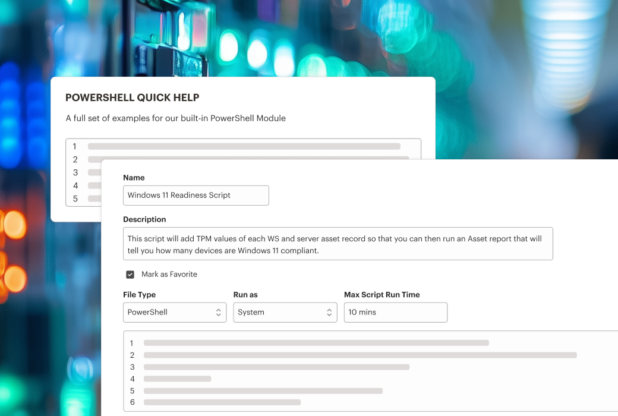
With Syncro’s powerful scripting engine, community-driven script library, and Remote PowerShell Prompt, you can deploy your scripts to unlimited endpoints effortlessly. Start a free trial today to see it in action.
Frequently Asked Questions About PowerShell Automation
IT departments commonly use PowerShell automation scripts for user onboarding and offboarding, patch validation, endpoint hardening, compliance reporting, and software inventory management. Many teams also automate browser policy enforcement and security configuration audits to reduce manual review cycles.
Scripts can continuously monitor for insecure configurations, disable vulnerable services, enforce encryption settings, and validate access controls. When run on a schedule or deployed through a secure IT management platform, they help maintain consistent policy enforcement across distributed environments.
Yes. PowerShell supports remote execution and integration with enterprise services, allowing scripts to scale across hundreds or thousands of endpoints. Centralized management further enhances scalability by standardizing deployment and monitoring.
IT teams should use descriptive variable names, implement structured error handling, validate inputs, avoid hardcoding credentials, and follow least-privilege principles. Version control and staged testing in non-production environments are also essential before broad deployment.
PowerShell remoting allows administrators to execute scripts and manage systems across multiple endpoints from a centralized location, improving scalability and operational control.

Share
Related Resources